
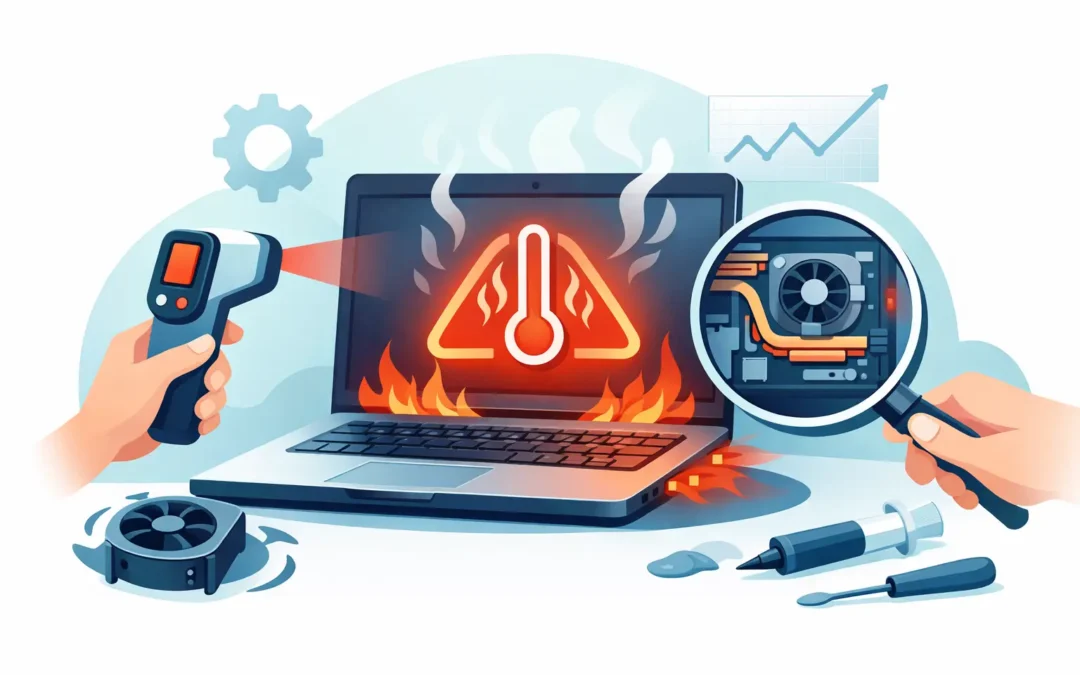
A laptop that gets hot enough to slow down, shut off, or make the fan sound like it is working overtime is not just annoying. It is often an early warning that something is wrong. If you are trying to figure out how to diagnose laptop overheating, the goal is not to guess. It is to narrow down whether the heat is coming from normal workload, blocked airflow, dust buildup, a failing fan, battery trouble, or a deeper hardware issue.
Heat problems can show up differently on different machines. A MacBook may feel hot near the hinge and throttle performance. A Windows laptop may run loudly, freeze during video calls, or power off during charging. In both cases, proper diagnosis matters because overheating is often a symptom, not the root problem.
What laptop overheating actually looks like
Not every warm laptop is overheating. Laptops naturally run warm, especially during charging, updates, video editing, gaming, or multitasking. The concern starts when the temperature affects performance, comfort, or stability.
Common warning signs include fans running at high speed for long periods, the bottom panel becoming too hot to touch comfortably, sudden slowdowns, random shutdowns, screen freezes, and battery drain that seems worse than usual. You may also notice the laptop gets much hotter in one specific area, which can point to a particular component.
That detail matters. Heat spread across the chassis may suggest heavy system load. Heat concentrated near the charging port, battery area, or processor zone may point to a more specific problem.
How to diagnose laptop overheating step by step
Start with the simplest checks first. A good diagnosis is usually about ruling out common causes before assuming the worst.
Check the environment and surface
A laptop used on a bed, couch, pillow, or soft chair can overheat even when nothing is technically broken. Soft surfaces block vents and trap heat underneath the device. High room temperature can make the problem worse, especially if the laptop is already working hard.
Move the laptop to a hard, flat surface and use it there for a while. If temperatures improve and the fan quiets down, airflow was likely a major factor. This does not always mean the machine is healthy overall, but it is the first thing to eliminate.
Listen to the fan behavior
Fan noise tells you a lot. If the fan ramps up during demanding tasks and settles down afterward, that is usually normal. If it runs loudly from startup, pulses constantly, clicks, grinds, or never seems to activate even when the laptop is very hot, that suggests a cooling problem.
A loud fan does not always mean a bad fan. It can also mean the fan is doing its job while dust, dried thermal paste, restricted airflow, or runaway software is forcing it to work harder than it should.
Look for workload-related heat
One of the most common causes of overheating is not hardware failure but excessive background activity. A browser with too many tabs, cloud syncing, updates, antivirus scans, video rendering, or apps stuck in a loop can drive CPU usage high enough to raise temperature fast.
On a Windows laptop, open Task Manager and check CPU, memory, and disk activity. On a Mac, open Activity Monitor and review the same general behavior. If one app or process is constantly using a high percentage of CPU, that may be the reason the system is overheating.
This is where diagnosis needs some judgment. If the laptop only gets hot during gaming, editing, or large file transfers, that may be expected. If it gets hot while doing basic email and web browsing, something is off.
Check for blocked vents and dust buildup
Dust is one of the most common causes of laptop heat issues, especially in machines that are a few years old or used in dusty rooms, offices, or high-traffic spaces. Dust collects in vents, fan blades, and heat sinks, reducing the system’s ability to move hot air out.
Use a flashlight to inspect visible vents. If you see dust packed into the openings, airflow is likely reduced. You might also notice weak exhaust even when the fan sounds loud, which often means air is not moving properly through the cooling path.
Surface dust can sometimes be cleaned carefully, but internal buildup is different. Opening the laptop without the right tools or experience can cause damage, especially on thinner laptops and many Apple models. If the machine is under warranty or the design is difficult to access, professional cleaning is the safer route.
Software checks that help diagnose overheating
Software can reveal whether the problem is temporary, workload-based, or connected to system health.
Watch for recent changes
If overheating started recently, ask what changed. A new app, operating system update, driver issue, charging accessory, or browser extension can all increase power draw. Even malware can cause constant background activity and excess heat.
A pattern helps. If the laptop overheats only after a recent update or only when connected to a certain charger or dock, that gives you a useful direction.
Check system updates and fan control issues
Outdated firmware, system management controllers, and drivers can affect thermal control. Sometimes the fan itself is fine, but the system is not responding correctly to temperature changes.
Make sure the operating system and relevant updates are current. If the problem began right after an update, however, the update may also be part of the issue. Diagnosis is rarely one-size-fits-all.
Monitor temperatures if needed
If you want a clearer picture, temperature monitoring tools can help confirm whether the laptop is mildly warm or genuinely overheating. These tools are useful when the symptoms are inconsistent or only happen under load.
The important part is context. A brief temperature spike is different from a system that stays dangerously hot while idle. High temperatures at idle often point to dust, cooling failure, poor thermal contact, or software running out of control.
Hardware issues that often cause overheating
Once the simple checks are done, the next question is whether a hardware fault is involved.
Failing or weak fan
A failing fan may spin inconsistently, make unusual noise, or stop altogether. In some cases, the fan still spins but no longer moves enough air to cool the system effectively. This is common in older laptops or devices that have seen heavy daily use.
Dried thermal paste
Thermal paste helps transfer heat from the processor to the heat sink. Over time, it can dry out and lose effectiveness. When that happens, the CPU or GPU may heat up quickly even if the fan is working and the vents are clear.
This is not usually something the average user can confirm just by looking from the outside, but it becomes likely when an older laptop runs hot despite clean vents and normal fan activity.
Battery or charging issues
A failing battery can also create excess heat, especially during charging. If the laptop gets noticeably hotter near the battery area, the chassis starts to swell, or the trackpad or bottom case looks raised, stop using it and have it inspected right away.
Using the wrong charger or a low-quality replacement charger can also create charging-related heat problems. Power accessories should match the device’s requirements closely.
When overheating is serious
Some heat issues can wait a little while. Others should not.
If the laptop shuts down repeatedly, shows battery swelling, smells hot or burnt, displays graphical glitches, or becomes extremely hot during light use, do not keep pushing it. Continued use can shorten the life of the motherboard, battery, storage, and processor.
This is especially true for work and school devices. Waiting too long often turns a manageable repair into a more expensive one.
When to stop troubleshooting and get professional help
If you have already ruled out soft surfaces, heavy app usage, and obvious dust at the vents, but the laptop still overheats, it is time for a proper diagnostic. Internal fan failure, thermal paste issues, charging faults, and board-level problems usually need hands-on testing.
A professional diagnosis is also the better choice when the laptop is a MacBook, an ultra-thin Windows device, or any model that is difficult to open safely. These machines often require careful disassembly, and forcing a home repair can create more damage than the heat problem itself.
At Stealth PC Technology, this is exactly the kind of issue that benefits from a clear inspection and an honest explanation of what is happening before any repair decision is made.
A practical way to think about overheating
The best way to diagnose laptop overheating is to treat heat as a clue, not a conclusion. Sometimes the answer is simple, like blocked airflow or a runaway app. Sometimes it points to a fan, battery, or internal cooling problem that needs professional service. Either way, catching it early gives you more options, lower risk, and a better chance of keeping your laptop reliable when you need it most.