
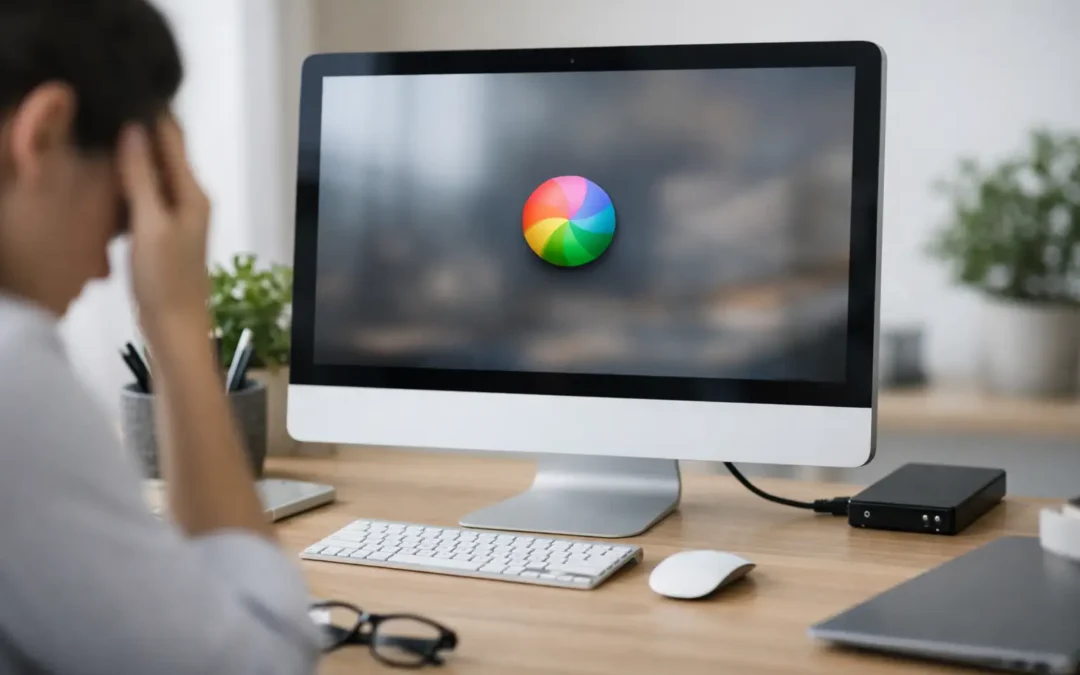
A slow iMac rarely becomes slow for just one reason. If you are asking, “why is my iMac so slow,” the answer may be as simple as a nearly full drive or too many apps opening at startup. It can also point to an aging hard drive, a software conflict, overheating, or a hardware issue that needs proper diagnostics. The goal is not to guess. It is to identify what is slowing the Mac down without putting your files, work, or photos at risk.
Why Is My iMac So Slow All of a Sudden?
When an iMac that normally works well starts taking longer to boot, open apps, switch between windows, or load websites, start with recent changes. A macOS update, a newly installed application, a large photo library, cloud syncing, or a browser with dozens of tabs can place extra demand on the system.
Sometimes the slowdown is temporary. After a major macOS update, your iMac may spend time indexing files, analyzing photos, syncing iCloud content, or completing background maintenance. During that period, the computer can feel unusually sluggish even when you are doing simple tasks. Leave it powered on and connected to the internet for several hours, then check whether performance improves.
If the problem continues for days, it is worth looking deeper. A persistent slowdown is more likely related to available storage, startup software, memory pressure, drive health, or an application that is using more system resources than it should.
Start With the Safe, Simple Checks
Restarting your iMac is a basic step, but it can clear temporary processes and memory issues. If you have not restarted in weeks, do that first. Then test the tasks that have been slow, such as opening Mail, browsing, editing documents, or launching business software.
Next, check available storage. Select the Apple menu, choose System Settings or About This Mac depending on your macOS version, and look for Storage. An iMac needs free working space for updates, cache files, virtual memory, and normal system operations. When the internal drive is nearly full, performance can drop sharply.
Aim to keep at least 15% to 20% of the drive free where possible. Move large videos, duplicate downloads, old installers, and completed projects to external storage only after confirming they have copied correctly. Emptying the Trash can also recover space, but review it carefully first. Files in the Trash may still be needed.
Your desktop can affect performance too, particularly on older Macs. A desktop filled with screenshots, folders, videos, and work files takes longer to load. Organize those items into folders or move completed work to a properly backed-up external drive.
Check Which Apps Are Using Your iMac’s Resources
Activity Monitor is one of the most useful built-in tools for finding a performance problem. Open it from Applications, then Utilities, and check the CPU, Memory, Energy, Disk, and Network tabs. You do not need to understand every process name. Look for an app that consistently uses a very high percentage of CPU, uses an unusual amount of memory, or causes heavy disk activity while your Mac is idle.
A browser is often the culprit. Chrome, Safari, Edge, and Firefox can all slow down when many tabs, extensions, video calls, or web-based business tools are running at once. Close tabs you no longer need, remove extensions you do not recognize or use, and test whether the browser improves after restarting it.
If one specific application is always slow, update that app first. If the issue began immediately after installing it, uninstalling it may be the right test. Avoid force-quitting system processes unless you know exactly what they do. Closing the wrong process can interrupt normal macOS functions or cause unsaved work to be lost.
Reduce Login Items and Background Activity
Many programs add themselves to your login items so they open every time you start the iMac. A few may be useful, such as a password manager or cloud backup software. Too many can make startup painfully slow and leave less memory available for your actual work.
In System Settings, search for Login Items. Review the list and remove nonessential apps that do not need to launch automatically. Be thoughtful rather than aggressive. Security software, backup tools, and workplace applications may need to remain active depending on how you use the computer.
Also pay attention to cloud syncing. iCloud Drive, Google Drive, Dropbox, OneDrive, and photo services can use significant bandwidth and disk resources while syncing large folders. If the iMac slows down only when a large batch of files is uploading or downloading, let the sync complete before assuming the computer has a hardware fault.
Older Hard Drives Can Make an iMac Feel Extremely Slow
Many older iMac models came with a traditional spinning hard drive or a Fusion Drive. These drives can become a major bottleneck as macOS and modern applications become more demanding. Even a healthy mechanical drive is much slower than a solid-state drive. If the drive is beginning to fail, you may also notice long startup times, spinning beach balls, files taking too long to open, or frequent freezing.
This is one of the most common situations where an iMac can be technically functional but frustrating to use. A properly selected SSD upgrade can make a dramatic difference on compatible models. However, iMac internal repairs are not casual do-it-yourself jobs. Many models require careful screen removal, specialized adhesive replacement, and safe handling of delicate internal components.
Before approving any drive replacement, make sure your data is backed up. If the existing drive is unstable, copying files may become difficult with little warning. A professional diagnostic can confirm whether the drive is the real issue and help you choose between repair, upgrade, or replacement based on the age and condition of the iMac.
Memory, macOS, and Hardware Compatibility Matter
Not every slow iMac needs more memory, but limited RAM can affect multitasking. If your Mac slows down when you have a browser, spreadsheet, video call, email, and several other programs open, memory pressure may be part of the problem. Activity Monitor can show whether memory pressure is green, yellow, or red. Yellow or red during normal work suggests your current workload is pushing the available memory.
Whether memory can be upgraded depends on the exact iMac model. Some older 27-inch iMacs allow relatively straightforward RAM upgrades. Many newer iMacs have memory that is not user-upgradeable. Confirm your model before buying parts or making a repair decision.
macOS version matters as well. An outdated operating system may miss performance improvements and security fixes, while the newest available version may place extra demand on very old hardware. The best choice depends on your specific iMac, the applications you rely on, and whether those applications support the macOS version you plan to use. Back up before major updates, especially if the Mac already shows signs of drive trouble.
Heat and Peripheral Devices Can Cause Slowdowns
Your iMac uses fans to keep internal components within a safe temperature range. Dust buildup, blocked ventilation, failing fans, or a hot room can cause the system to reduce performance to protect itself. If the fans are constantly loud, the back of the iMac is very hot, or the computer slows down during video editing and video calls, heat deserves attention.
Disconnect nonessential accessories and test again. A damaged external drive, faulty USB hub, unreliable adapter, or problematic printer can delay startup and cause applications to hang. Reconnect devices one at a time to identify whether a particular accessory is involved.
Avoid opening the iMac or using compressed air inside it unless you are trained to do so. Improper cleaning can damage components or push dust deeper into sensitive areas.
When a Slow iMac Needs Professional Diagnostics
A clean restart and a little storage management can solve many everyday slowdowns. But repeated freezing, startup failures, strange noises, random shutdowns, or a drive that disappears are not problems to ignore. Continued use can make data recovery more difficult if the internal drive is failing.
Professional diagnostics are especially worthwhile when your iMac contains business files, school work, family photos, or accounting records that are not fully backed up. A technician can test drive health, temperature behavior, memory, software conflicts, and startup performance before recommending work. That gives you an honest answer about whether a repair is sensible or whether your money is better spent elsewhere.
Stealth PC Technology can assess Mac performance concerns with a clear explanation of the findings, practical repair options, and a customer-conscious quote before work begins.
If your iMac is slowing down, make a current backup before trying major changes. Then focus on the symptoms you can observe: when it slows down, which apps are open, whether the fans are loud, and whether startup takes longer than it used to. Those details can turn a frustrating problem into a clear path forward.