
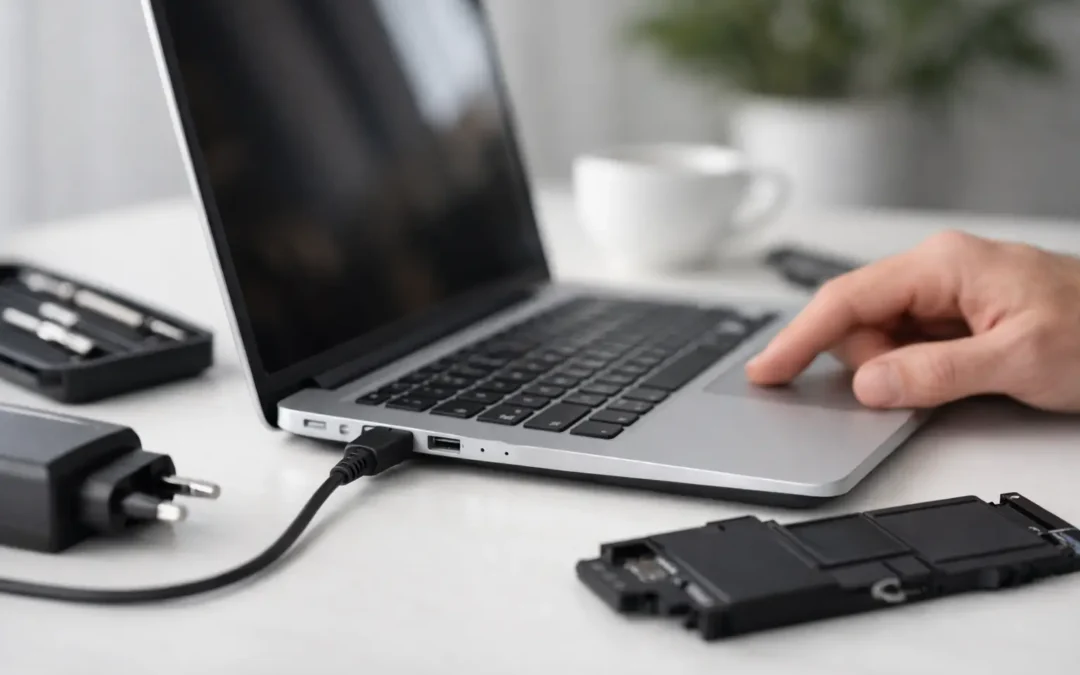
A laptop that drops from 100% to zero before your workday ends is more than an inconvenience. If you are asking, “why won’t my laptop hold charge,” the answer may be as simple as a worn charger or as involved as a battery or charging-circuit fault. The good news is that the symptoms usually point toward the right next step.
Before buying a replacement battery or assuming the computer is finished, check how it behaves while connected to power. A laptop that will not charge at all needs a different diagnosis from one that charges normally but loses power too quickly. That distinction can save time, money, and unnecessary repairs.
Why Won’t My Laptop Hold Charge? Start With the Symptoms
Pay attention to what happens when you connect the charger. Does the battery percentage rise, stay frozen, or continue falling? Does the charging light flicker? Does the computer shut down as soon as the power cable is removed? These details help identify whether the problem is with the battery, the charger, the charging port, or the computer’s internal power system.
If your laptop says it is plugged in but the percentage never increases, do not assume the battery is automatically the problem. The charger may not be providing enough wattage, the cable may be damaged, or the charging port may have a loose connection. On USB-C laptops, using a phone charger or a low-power adapter can keep the machine running slowly while failing to recharge the battery properly.
A laptop that charges to 100% but drains unusually fast is more often dealing with battery wear, excessive power use, heat, or a software setting. Batteries are consumable components. Every recharge cycle gradually reduces their ability to store energy, especially after several years of regular use.
1. The Battery Has Reached the End of Its Useful Life
Lithium-ion batteries do not last forever. With age and use, they hold less charge and may become less stable. A laptop that once lasted eight hours may only manage two or three hours, even though it still shows 100% after charging.
MacBooks can display a battery service recommendation in system settings. Many Windows laptops provide battery health information through the manufacturer’s utility, BIOS, or a battery report. A reduced maximum capacity is a strong sign that the battery needs replacement, but it is not the only issue worth checking.
Battery replacement is often a practical repair for a laptop that is otherwise performing well. However, some models have batteries integrated into the chassis, so proper service requires careful disassembly. Using the correct battery and installing it safely matters, particularly with slim laptops and Apple devices.
2. The Charger, Cable, or Adapter Is Failing
Chargers tend to fail gradually. The cable may work only at a certain angle, the connector may become hot, or the power brick may charge intermittently. Fraying near either end of the cable is a clear warning sign, but internal damage can exist even when the outside looks fine.
Use a charger that meets your laptop’s required wattage and connection type. A compatible USB-C charger must deliver enough power for the computer, not just fit the port. This is especially relevant for performance laptops, which may require 65W, 90W, 100W, or more. An underpowered adapter can trigger slow charging, battery drain while plugged in, or a warning message.
If possible, test with a known-good, properly rated charger. If the laptop begins charging normally, replace the faulty adapter or cable rather than the battery. Avoid low-quality replacement chargers, as inconsistent power delivery can create further charging problems.
3. The Charging Port Is Loose, Dirty, or Damaged
A charging port takes daily wear from plugging and unplugging. Dust, lint, bent contacts, corrosion, or a loose internal connection can prevent reliable charging. If you need to hold the connector in a certain position to make it work, the port should be inspected.
Do not force a connector into the port or poke inside with metal tools. That can bend contacts or create a short circuit. A technician can inspect the port, test power delivery, and determine whether the issue is external debris, a damaged DC-in jack, or an internal board-level problem.
On some laptops, the charging port can be replaced as a separate part. On others, especially newer USB-C models, the issue may involve the logic board or motherboard. The repair path depends on the laptop’s design and the actual fault, which is why diagnostics should come before quoting a major repair.
4. Your Laptop Is Using More Power Than Expected
A healthy battery can still drain quickly when the laptop is working hard. Video calls, browser tabs, external displays, gaming, photo editing, background syncing, and high screen brightness all increase power consumption. Heat adds another problem because the cooling fans work harder and battery efficiency can fall.
On a Windows laptop, open Task Manager and look for programs using an unusually high amount of processor, memory, or graphics resources. On a MacBook, Activity Monitor provides similar information. Closing an application that is stuck or using excessive resources may immediately improve battery life.
Adjusting brightness, turning off keyboard backlighting when it is not needed, and disconnecting unused accessories can help. These steps will not restore a degraded battery, but they can tell you whether the drain is mostly usage-related or whether the battery is failing faster than it should.
5. Battery Settings or Software Need Attention
Operating system updates, driver issues, and power settings can affect charging behavior. Some laptops include battery preservation features that intentionally stop charging around 80% to reduce long-term battery wear. That is normal when enabled, although it can look like a charging failure.
Check whether a battery-health or smart-charging setting is active before assuming something is wrong. If the laptop is stuck at the same percentage, restart it and install pending operating system and manufacturer updates. Windows users should also review battery and chipset drivers. MacBook users can check Battery settings and restart the computer before pursuing deeper troubleshooting.
Software can cause fast drain, but it rarely causes a laptop to refuse power completely. If the device does not recognize the charger, has no charging indicator, or shuts down immediately when unplugged, hardware testing is the sensible next step.
6. The Battery May Be Swollen or Unsafe
A swollen battery is not a do-it-yourself repair. Warning signs include a lifted trackpad, a bulging bottom case, a keyboard that sits unevenly, or a laptop that rocks on a flat surface. You may also notice unusual heat or a gap along the case seam.
Stop using and charging the laptop if you suspect battery swelling. Do not press the case closed, puncture the battery, or place the computer in household trash. A swollen lithium-ion battery needs professional handling and replacement to protect both you and the device.
7. An Internal Power Circuit May Need Repair
When a known-good charger and a healthy-looking port still do not restore charging, the issue may be inside the laptop. A failed charging controller, damaged power rail, liquid damage, or motherboard fault can prevent the battery from charging even if the computer turns on.
This is where a proper diagnostic is valuable. A technician can test the charger, port, battery condition, and internal charging circuit rather than replacing parts by guesswork. For business users and students who depend on their laptop daily, an honest diagnosis also helps determine whether repair is the best value compared with replacement.
When to Book a Laptop Charging Diagnostic
Book service promptly if your laptop only works while plugged in, the charger connection cuts in and out, the battery percentage falls while charging, or the case appears swollen. Bring the laptop and its charger so both can be tested together. If you have tried another compatible charger, mention the result when creating the repair ticket.
Stealth PC Technology can assess MacBook and Windows laptop charging issues, explain the fault in plain language, and provide a practical repair recommendation before work begins. A clear diagnosis is the fastest way to get back to dependable power and avoid being stranded at the worst possible moment.