
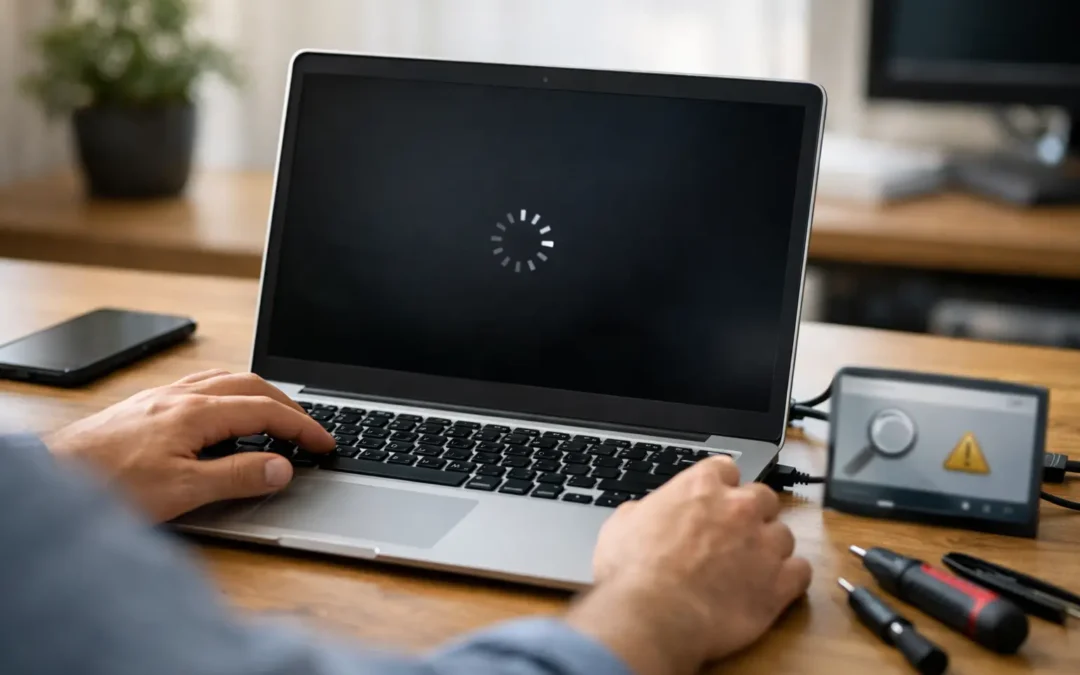
A laptop that refuses to start can stop work, school, customer communication, and access to files in seconds. The right windows laptop not booting fix depends on what you see when you press the power button: absolutely nothing, a lit screen with no image, a Windows logo that never finishes loading, or an error message. That distinction matters because the safest next step is different in each case.
Before trying major repairs or reinstalling Windows, take a moment to protect what may still be recoverable. Avoid repeated forced restarts if the laptop is making clicking sounds, showing a drive error, or becoming unusually hot. Those symptoms can point to hardware trouble that needs careful diagnosis.
Start by Identifying the Type of Boot Failure
A laptop can appear not to boot for several reasons. If no lights, fan noise, or screen activity appear, the issue may be power-related. If indicator lights come on but the display remains black, the laptop could be running while the screen is not displaying an image. If you reach the Windows logo, spinning dots, automatic repair screen, or a blue error screen, power is reaching the system but Windows may be unable to load.
Take note of any messages, beep patterns, blinking lights, or recent changes. A failed update, a new USB device, a liquid spill, a drop, an aging battery, or a charger that no longer fits securely can all provide useful clues. If the laptop belongs to a business, record the error message and avoid making changes that could complicate access to company data or security settings.
Check Power, Charger, and External Devices First
Start with the simple checks that often resolve an apparent no-boot issue. Plug the charger directly into a known-working wall outlet rather than a power strip. Confirm that the charging light appears, if your model has one, and inspect the cable for fraying, bent connector pins, heat damage, or a loose charging tip.
Disconnect every nonessential item from the laptop. Remove USB drives, memory cards, external displays, printers, docking stations, and adapters. A computer can sometimes try to boot from an attached device instead of its internal drive, or a damaged accessory can interfere with startup.
Then perform a complete power reset:
- Disconnect the charger and all accessories.
- Hold the power button down for 15 to 20 seconds.
- Reconnect only the charger.
- Wait a minute, then press the power button once.
For laptops with a removable battery, remove it before holding the power button, then test the machine using charger power alone if the manufacturer allows it. If it starts without the battery, the battery may be failing. If it only works when plugged in, do not assume the charger is fine – a weak or incorrect charger can provide enough power for a light but not enough for normal startup.
Using the correct wattage and connector type matters. Generic chargers may fit physically but fail to deliver stable power, especially on performance laptops. A compatible, quality replacement adapter is usually a better first test than repeatedly attempting to start the device with a damaged charger.
When the Power Light Is On but the Screen Is Black
A black screen does not always mean the laptop is off. Look and listen for signs of activity: fan noise, keyboard backlighting, a charging light, or the Caps Lock key responding when pressed. Increase screen brightness and wait 30 seconds after powering on. If you recently connected an external monitor, disconnect it because Windows may be sending the picture to that display.
You can also try the Windows graphics reset shortcut: press Windows key + Ctrl + Shift + B. A brief beep or screen flicker may indicate that Windows has restarted the graphics driver.
If the laptop powers on but shows no logo, no backlight, and no image even after these checks, the cause could be the display panel, display cable, graphics hardware, memory, or motherboard. This is the point where opening the laptop without the right tools can turn a manageable repair into a more expensive one.
Windows Laptop Not Booting Fixes When You See the Logo
If the manufacturer logo or Windows logo appears, leave the laptop on for several minutes once. After an update or an improper shutdown, Windows may need time to repair files or complete pending work. If it stays frozen for more than 10 to 15 minutes, hold the power button until the device turns off, then restart it.
When Windows fails to start several times, it will often open the Windows Recovery Environment automatically. If it does not, interrupt the startup process by powering off the machine when the Windows logo appears, then repeat this two or three times. Once you see Automatic Repair, choose Advanced Options rather than immediately resetting the PC.
Start with Startup Repair. This tool attempts to correct common boot configuration issues without deleting personal files. It is a sensible first choice after a failed update or a sudden shutdown, although it cannot repair every problem.
If Startup Repair does not work, return to Advanced Options and try System Restore. This can return Windows system files, drivers, and settings to an earlier restore point while leaving personal documents alone. It is especially useful when the issue began after installing a driver, program, or update.
Safe Mode is another useful option. In Startup Settings, choose Safe Mode to load Windows with basic drivers. If the laptop starts there, remove recently installed software, uninstall a problematic driver, or check for storage space issues. Do not remove security software, business management tools, or unknown drivers unless you understand their purpose.
A reset or full Windows reinstallation should be a later step, not the first. Even the Keep My Files reset option removes applications and may affect settings, licenses, and saved data stored outside standard user folders. If important files are not backed up, professional data recovery or diagnosis may be the wiser choice before you reset anything.
Understand Common Error Screens Before Taking Action
A message such as No Bootable Device, Boot Device Not Found, or Operating System Not Found often points to an internal storage drive that Windows cannot see. The cause may be a loose connection, a failed SSD or hard drive, or a corrupted boot configuration. Repeated restarts will not normally repair a physically failing drive.
If you see BitLocker Recovery, do not guess at the recovery key. This screen is a security feature, often triggered by a hardware or firmware change. The key may be stored in the Microsoft account or managed by an employer or school. For a work laptop, contact the organization responsible for its IT policies before changing BIOS settings or reinstalling Windows.
Blue screens can be caused by software, drivers, memory, storage faults, or hardware failure. Photograph the stop code if possible. A code such as INACCESSIBLE_BOOT_DEVICE, CRITICAL_PROCESS_DIED, or repeated WHEA_UNCORRECTABLE_ERROR gives a technician a stronger starting point than a general report that the laptop will not turn on.
Know When the Problem Is Likely Hardware
Some symptoms deserve prompt diagnosis rather than more troubleshooting. Clicking or grinding sounds from an older hard drive, a burning smell, a swollen battery, liquid exposure, a cracked charging port, or a laptop that starts and immediately shuts down can indicate physical damage. Stop using the device if the battery is swollen, the case is separating, or the charger becomes excessively hot.
An SSD can fail without warning, and memory faults can prevent a system from passing its initial startup checks. Repairing these issues may involve testing components, checking internal power rails, replacing storage, reinstalling Windows, and confirming that personal data is intact. The correct repair depends on the laptop model and the condition of the drive, not just the message on screen.
For customers who rely on their computer every day, a professional diagnostic can prevent wasted spending on the wrong part. Stealth PC Technology can assess Windows laptop power, display, boot, storage, and operating system issues, then provide an honest and compassionate quote before repair work begins.
What to Bring for a Faster Diagnosis
Bring the laptop and its charger, especially if charging behavior is part of the issue. Share the laptop password only if you are comfortable doing so and it is needed for testing after startup. If you have a screenshot or photo of an error, bring that as well.
Tell the technician when the problem began, whether the device was dropped or exposed to liquid, and what happened immediately before it failed. Mention recent updates, new software, unusual noises, and whether you need files recovered. Clear details help separate a simple Windows repair from a storage or hardware concern.
The best next step is usually the least destructive one: verify power, remove accessories, use Windows recovery tools carefully, and stop when the symptoms suggest hardware failure. That approach gives your laptop – and your files – the best chance of a safe return to service.