
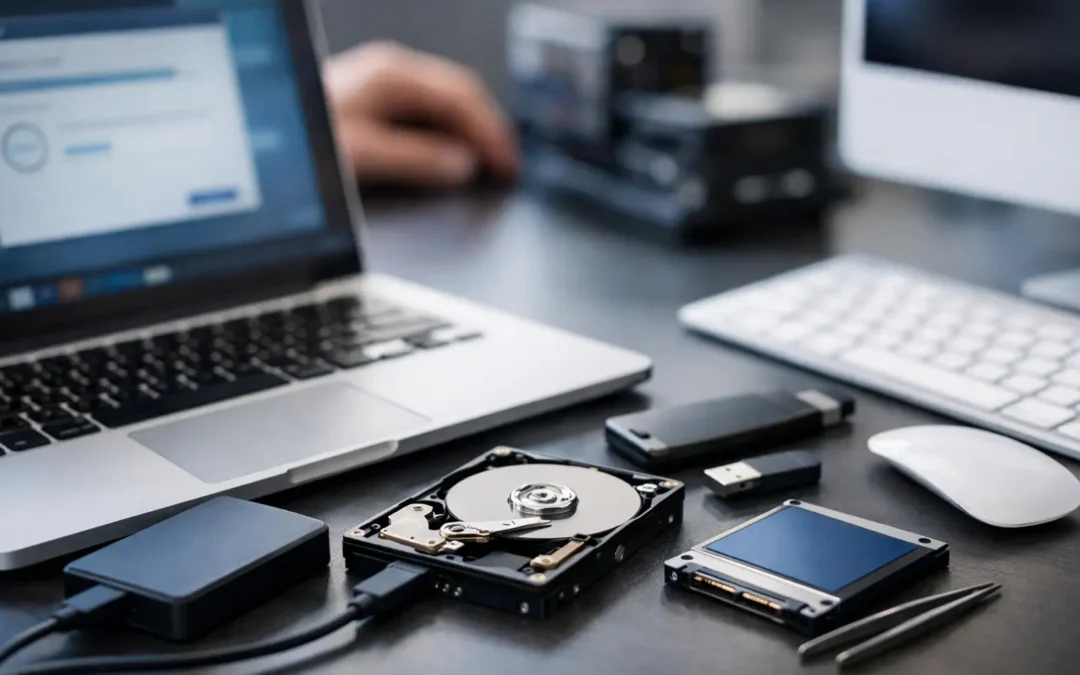
A deleted proposal, an unreadable external drive, or a laptop that suddenly refuses to start can bring work, school, and personal plans to a stop. This data recovery guide explains what to do first, what not to do, and when professional help offers the best chance of getting your files back.
Start by Protecting the Drive
The first rule of data recovery is simple: stop using the affected device as soon as you notice a problem. Every new file, download, update, or restart can write new information to the drive. If the missing data has not been permanently erased, those new writes may overwrite it.
If files disappeared from a MacBook, Windows laptop, desktop, USB drive, or external hard drive, avoid installing recovery software on that same drive. Do not save recovered files back to it either. Use another working computer and a separate external drive whenever possible.
A calm first response can make a major difference. Before trying fixes, identify what happened. Was a file deleted? Did the device ask to format a drive? Did the computer crash during an update? Is the drive making unusual clicking or grinding sounds? The answers help determine whether the issue is likely software-related, file-system-related, or physical.
Do these things immediately
- Stop saving files, installing applications, and downloading updates to the affected drive.
- Disconnect an external drive safely if it is not needed for testing or if it appears to be failing.
- Write down the error messages, symptoms, and the last time the files were accessible.
- Check existing backups before attempting recovery, including cloud storage, Time Machine, File History, and business backup systems.
Check the Simple Places Before Recovery Tools
Not every missing file is lost. It may have been moved, renamed, synced to another folder, or placed in a recycle location.
On Windows, check the Recycle Bin, search by file name and file type, and confirm that you are signed into the correct user profile. If OneDrive or another cloud service is in use, look for deleted-file folders and version history. A file may also be available from an earlier saved version, depending on the application and backup settings.
On a Mac, check the Trash, use Finder search, and review iCloud Drive or other cloud storage folders. If Time Machine was configured before the issue occurred, it can restore individual files or an entire earlier folder state without touching the rest of the system.
For an external drive that appears empty, do not assume the data is gone. A damaged file system, hidden files, permissions problem, or incorrect drive mount can make files seem unavailable. Formatting the drive because the computer prompts you to do so may reduce recovery options. Pause and get the drive assessed first.
Understand the Type of Data Loss
The best recovery method depends on the failure. A deleted document is very different from a drive that no longer powers on.
Deleted or accidentally formatted files
Deleted files may remain recoverable if the storage space has not been reused. This is more likely on traditional hard disk drives, especially when the computer was stopped quickly. Accidentally formatting a drive can also leave data behind, but recovery becomes more complicated if new files were added afterward.
Solid-state drives require extra caution. Many SSDs use a feature called TRIM, which helps the drive manage storage efficiently. Once TRIM has processed deleted data, software recovery may be limited or impossible. That does not mean every SSD case has the same outcome, but it is a good reason to stop using the device immediately.
Corrupted files or an unbootable computer
A computer that will not boot does not always have a failed drive. The issue could involve the operating system, a damaged user profile, a failed update, malware, or hardware unrelated to storage. In these cases, files may still be intact and accessible through a careful diagnostic process.
Avoid repeated forced shutdowns if the system is behaving unpredictably. If the drive is healthy, a technician may be able to access your files from another environment, copy them to safe storage, and then address the underlying operating system issue.
A drive that clicks, overheats, or disappears
Physical symptoms change the situation. Repeated clicking, grinding, burning smells, unusual heat, or a drive that connects and disconnects can indicate mechanical or electrical failure. Continuing to power it on may cause further damage.
Do not open a hard drive enclosure, freeze the drive, strike it, or rely on internet “quick fixes.” Those methods can turn a recoverable case into a much more difficult one. A professional evaluation is the safer choice when hardware failure is suspected.
When Software Recovery Makes Sense
Recovery software can be useful for straightforward deletion or file-system issues when the drive is stable, detected correctly, and not making unusual noises. It is not a universal answer. The software may locate fragments, duplicate files, or folders with unclear names, and full recovery is never guaranteed.
If you choose to try software, work from a separate drive. Install the tool on a healthy computer or an alternate external disk, scan the affected storage, and recover files to a different destination. Start with the most important documents, photos, accounting files, or project folders rather than recovering everything blindly.
For business users, consider the cost of time as well as the cost of recovery. A long self-service attempt can delay payroll, customer communication, estimates, or project delivery. When the data is business-critical, an early professional diagnosis often provides clearer answers and reduces the risk of avoidable mistakes.
Mac and Windows Recovery Considerations
Mac and Windows systems store and protect data differently, but the practical priorities are similar: preserve the original drive, verify backups, and avoid overwriting data.
On a Mac, FileVault encryption can affect how accessible the drive is outside the original computer. Keep your login password and recovery key available if you have them. Apple silicon and newer Mac hardware may also require device-specific knowledge during diagnostics, particularly when the computer will not start or the internal storage is involved.
On Windows, BitLocker encryption can create similar access requirements. A BitLocker recovery key may be needed before a technician can access the contents of the drive. If your device is connected to a work or school account, the key may be stored with that account or managed by an organization.
Whether you use macOS or Windows, never share passwords or recovery keys casually. Provide them only through a trusted repair process when they are necessary to access your data. A reputable technician should explain why the information is needed and what steps will be taken.
What a Professional Data Recovery Assessment Can Tell You
A proper assessment should not promise results before the drive is examined. Honest recovery work starts with identifying the condition of the hardware, the type of data loss, the likely recovery path, and the risks involved.
For example, a healthy external drive with accidental deletion may need logical recovery and file verification. A laptop with a failing hard drive may need data copied before any repair begins. A physically damaged drive may require specialized recovery work that is different from routine computer repair.
Ask clear questions before approving service: Is the drive stable? Is the problem logical or physical? What files are most likely to be recovered? Will recovered data be returned on a separate drive? What happens if the requested files cannot be recovered? Clear expectations matter, especially when the device contains irreplaceable family photos or essential business records.
Prevent the Next Data Loss Event
The most effective recovery plan begins before anything fails. Keep at least one backup separate from your computer, and consider a second copy stored in a different location or cloud service. For a small business, automated backups should be checked regularly, not simply assumed to be working.
A good routine is practical rather than complicated: back up important files automatically, test that you can restore a file, keep your operating system current, and replace aging drives before they become unreliable. Surge protection and the correct power adapter also help protect devices from electrical issues that can affect storage.
If your files are missing right now, do not let urgency push you into risky steps. Preserve the device, gather the details, and choose the recovery path that gives your data the best possible chance.