
A computer that takes five minutes to start, freezes while opening files, or makes clicking noises is not just frustrating. It can interrupt school, work, customer communication, and the daily tasks you depend on. When comparing SSD versus HDD, the right choice depends on what you need from your computer, what hardware it supports, and whether your current drive is showing signs of failure.
For most people, an SSD is the best way to make an older Mac or Windows PC feel noticeably faster. An HDD still has a place, especially when you need large amounts of storage at a lower price. The better option is not always the most expensive one. It is the drive that matches your workload and keeps your important files protected.
SSD Versus HDD: The Main Difference
Both solid-state drives and hard disk drives store your operating system, applications, documents, photos, and other files. The major difference is how they do it.
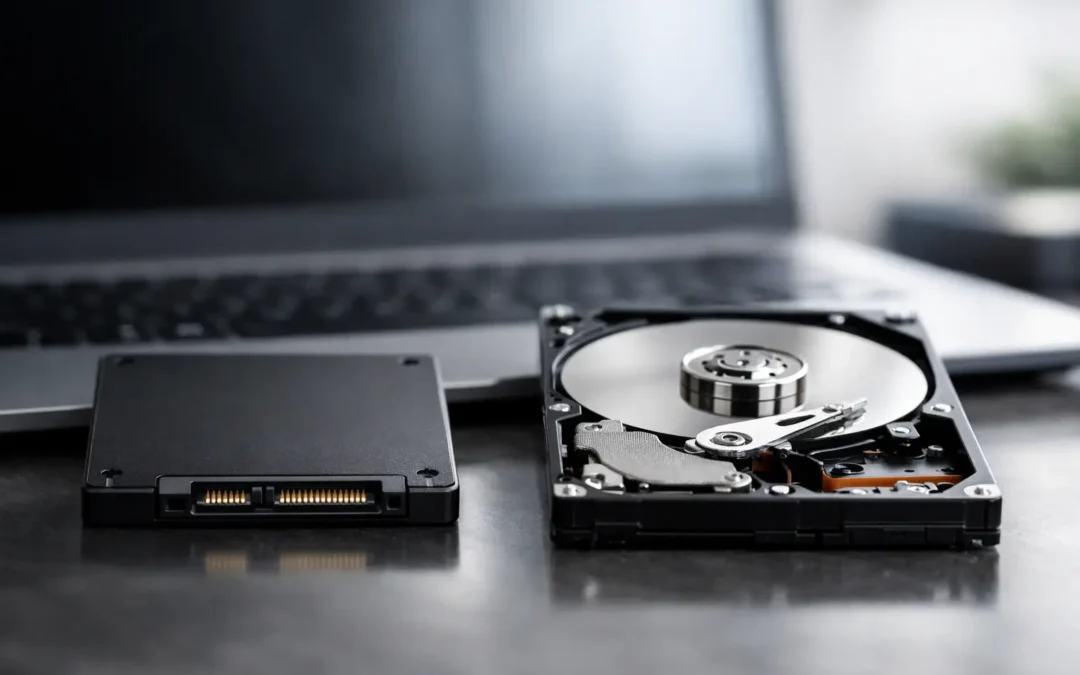
An HDD, or hard disk drive, uses spinning magnetic disks and a moving read/write arm. This is familiar technology that has been used in computers for decades. Because it contains moving parts, an HDD is generally slower and more vulnerable to damage from drops, vibration, and wear over time.
An SSD, or solid-state drive, stores data on flash memory chips. There are no spinning disks or moving arms inside. That design allows the drive to read and write information much faster while remaining quieter and more resistant to physical shock.
The result is easy to notice in everyday use. A computer with an SSD can often start in seconds, open applications quickly, and respond more smoothly when several programs are running. A system with an HDD may still work well for basic tasks, but it can feel slow as software, updates, and file sizes increase.
Why an SSD Usually Feels Faster
The speed advantage of an SSD is most noticeable when your computer needs to access many small files at once. Starting Windows or macOS, launching Microsoft Office or Adobe applications, opening a browser with several tabs, and searching through files all benefit from faster storage.
For a student, that can mean a laptop that is ready before class begins. For a business owner, it can mean less waiting when opening invoices, responding to email, or accessing client documents. For a creative user, it can reduce delays when working with large photo libraries, video projects, or design files.
Speed varies by drive type and computer connection. A SATA SSD is a major improvement over a traditional HDD, even in many older laptops and desktop computers. Newer NVMe SSDs are faster again, but they require compatible hardware. Installing the fastest drive available is not useful if the computer cannot support it properly.
An SSD also runs silently. If you hear repetitive clicking, grinding, or spinning from a hard drive, that is not normal computer background noise to ignore. It can be a warning that the drive is wearing out and should be assessed before important data becomes inaccessible.
Where an HDD Still Makes Sense
Hard drives remain practical when storage capacity matters more than speed. Large HDDs usually cost less per gigabyte than solid-state storage, making them useful for keeping extensive collections of videos, photos, archived projects, or backups.
For example, a desktop PC used to store years of business records or media files may benefit from a combination of both technologies: an SSD for Windows, applications, and current work, plus an HDD for larger files that do not need instant access. This can offer strong day-to-day performance without paying SSD prices for every terabyte of storage.
External HDDs can also be a reasonable backup option when handled carefully. However, they should not be the only copy of irreplaceable files. Any drive can fail, whether it is new, old, internal, or external. Important data deserves more than one backup location.
An HDD may also be the sensible short-term choice when a customer needs to restore a computer on a tight budget. A dependable repair plan should consider the age and overall condition of the system. Putting a premium upgrade into a computer with several other failing components may not be the best value.
Reliability, Heat, and Physical Damage
Because SSDs have no moving parts, they are generally better suited to laptops that travel frequently. A notebook can be bumped in a bag, moved between classes or offices, or used while commuting. An SSD is less likely than an HDD to suffer mechanical damage from routine movement.
That does not mean an SSD cannot fail. Sudden power loss, electrical problems, overheating, firmware issues, and normal component wear can affect any storage device. SSD failures can also be difficult to predict. An HDD may make unusual sounds before it fails, while an SSD can sometimes stop working with fewer obvious warnings.
The practical lesson is the same for both drive types: do not wait for a failure before thinking about your files. Back up important documents, photos, accounting records, and schoolwork regularly. If a computer has become slow, crashes during startup, cannot find its operating system, or reports disk errors, seek diagnostics before repeatedly restarting it or attempting random fixes.
Choosing the Right Drive Capacity
A fast drive that is too small quickly becomes a problem. Storage fills faster than many people expect once updates, applications, photos, messages, downloads, and cloud-synced files accumulate.
For a basic work or school computer, 500GB is often a comfortable starting point for an SSD. A 1TB SSD makes more sense for users who keep substantial photo collections, work files, or multiple large applications locally. Video editors, designers, and users with extensive media libraries may need 2TB or more, or they may prefer a two-drive setup.
Avoid filling a drive to its absolute limit. Both macOS and Windows need free space for updates, temporary files, and normal operation. A nearly full drive can contribute to poor performance and make troubleshooting more difficult.
Capacity is also a reason to review what is already on the computer before replacing a drive. A customer may think they need a larger drive when old downloads, duplicate photos, unused apps, or outdated backups are consuming most of the space. A proper assessment can identify whether the better answer is a new drive, a cleanup, an external backup solution, or a combination of those options.
SSD Versus HDD for Mac and Windows Repairs
The upgrade process is not identical for every device. Some older Windows laptops and desktop PCs allow a straightforward replacement from an HDD to a SATA SSD. Many newer PCs use compact M.2 NVMe drives instead. Some Apple devices have storage that is integrated into the logic board or uses proprietary configurations, which can limit upgrade options.
That is why compatibility matters before purchasing any drive. The physical size, connection type, operating system requirements, available space inside the computer, and condition of the existing hardware all need to be checked. A drive replacement also involves protecting or recovering data and correctly reinstalling or transferring the operating system.
If the current drive is failing, cloning it may not always be safe or successful. In some cases, the priority should be data recovery rather than migration. Continuing to use a failing drive can make recovery more difficult, particularly if the device repeatedly crashes or no longer mounts consistently.
At Stealth PC Technology, diagnostics can help determine whether slow performance is caused by storage, memory, software issues, battery health, overheating, or another hardware concern. That gives customers a clearer recommendation and an honest quote before moving forward with repairs.
When Should You Upgrade?
An SSD upgrade is worth considering when a computer is otherwise in good condition but feels slow during startup and normal use. It is often one of the most cost-effective improvements available for an older system with a traditional hard drive.
Consider replacement sooner if you notice persistent disk warnings, frequent freezing, files that take unusually long to open, unexplained error messages, clicking sounds, or a computer that cannot consistently start. Those symptoms do not always confirm a failed drive, but they should be taken seriously.
Before any repair or upgrade, make a current backup if the computer still allows it. Then have the system checked for drive health and compatibility. The right storage choice should leave you with a computer that is not only faster, but dependable enough for the work and people who rely on it.
A few minutes spent checking your backups and asking the right repair questions now can prevent a much more stressful data loss later.