
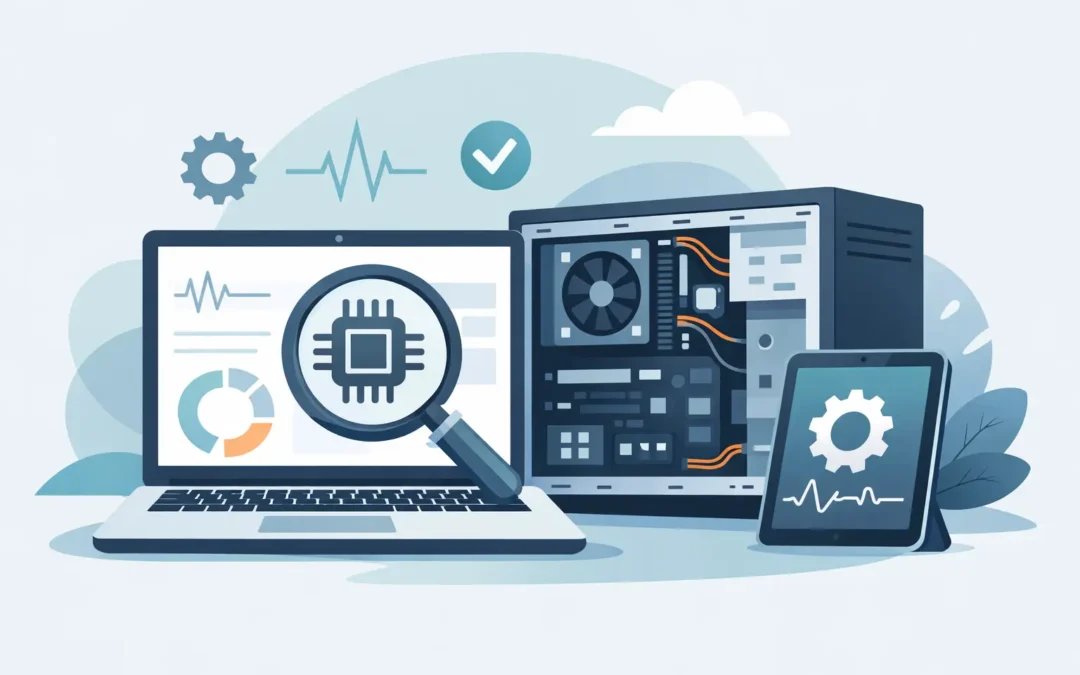
When your computer suddenly slows down, overheats, freezes, or refuses to power on, guessing is expensive. That is usually the point where people ask, what is a computer diagnostic test, and whether it is really necessary before a repair. The short answer is yes – if you want a clear answer instead of trial and error.
A computer diagnostic test is a structured evaluation used to identify what is causing a problem in a Mac or Windows computer. It checks the health and behavior of key hardware and software components, then helps a technician determine whether the issue is coming from the battery, storage drive, memory, motherboard, operating system, overheating, power delivery, or another fault. In plain terms, diagnostics turn symptoms into evidence.
That matters because many computer problems look the same from the outside. A laptop that will not start could have a bad charger, a failing battery, a damaged charging circuit, corrupted system files, or a failed logic board. If someone skips diagnostics and jumps straight to replacing parts, the repair can take longer and cost more than it should.
What is a computer diagnostic test used for?
The main purpose of a diagnostic test is to locate the real source of a problem. It is not just about confirming that something is wrong. It is about narrowing the issue down so the next step is based on facts.
For example, if a MacBook shuts down randomly, a diagnostic process might check battery health, internal temperature readings, fan operation, power draw, and system logs. If a Windows laptop is running painfully slow, diagnostics may look at drive health, memory usage, startup behavior, operating system errors, and background processes. The symptom is what you notice. The diagnostic result is what explains it.
This is also why diagnostics are useful even when a computer still turns on. A machine can appear functional while hiding a failing SSD, overheating CPU, unstable RAM, or charging issue that will get worse with time. Catching those signs early often helps avoid a larger repair later.
What a computer diagnostic test usually checks
A proper test does not look at just one part of the machine. It usually reviews the full condition of the device, especially if the problem is unclear.
Hardware checks
Hardware diagnostics often focus on the components most likely to fail or cause visible symptoms. That includes the hard drive or SSD, RAM, battery, charging port, motherboard, cooling system, screen behavior, keyboard function, and connected ports. On desktops, power supply and graphics performance may also be tested.
If a device is overheating, the technician may look at fan speed, dust buildup, thermal behavior, and whether the system is throttling performance to protect itself. If a laptop is not charging, the test may compare the battery condition with the behavior of the charging circuit and adapter input.
Software checks
Not every issue is physical damage. Software problems can mimic hardware failure, especially when the system crashes, becomes unstable, or takes forever to boot.
Software diagnostics may include operating system health, driver conflicts, startup errors, malware symptoms, corrupted files, and update-related issues. On Macs, that can include system integrity concerns and application conflicts. On Windows PCs, it may involve event logs, disk errors, and software processes consuming resources in the background.
Performance and behavior testing
Some faults only show up under load. A computer may work fine for ten minutes, then freeze when multiple programs are open or when it gets warm.
That is why technicians often run stress tests, benchmark checks, temperature monitoring, and repeated startup cycles. These tests help reveal intermittent issues, which are usually the hardest problems for customers to describe and the easiest problems to miss without proper evaluation.
What happens during the diagnostic process?
A diagnostic appointment usually starts with the symptoms you report. That part is more important than many people realize. If your laptop only shuts down when it is unplugged, or your iMac only freezes during video calls, those details help direct the testing.
From there, the technician performs a combination of visual inspection, software tools, hardware testing, and manual verification. Sometimes the issue is obvious right away, such as liquid damage, a swollen battery, or a broken charging port. In other cases, the computer needs deeper testing before the cause becomes clear.
A good diagnostic process is not just about finding a fault. It should also lead to a practical recommendation. That means explaining what failed, what needs repair or replacement, whether data is at risk, how urgent the issue is, and whether the repair makes financial sense.
This is where customers benefit from a service-focused repair provider. You do not just need technical findings. You need those findings translated into a clear, honest quote and realistic turnaround expectations.
When should you get a computer diagnostic test?
You should consider diagnostics any time your computer is acting outside its normal behavior and the cause is not obvious. That includes machines that are slow, noisy, hot, unstable, not charging, not connecting to Wi-Fi, displaying strange messages, or failing to start.
It is especially worth doing when the device contains important files for school, work, business, or personal use. Waiting can turn a manageable issue into data loss or a more expensive repair.
There are also times when diagnostics are the smart first step even if you are not sure you want a repair yet. If you are deciding whether to fix or replace a machine, a diagnostic result gives you real information to work with. It helps you avoid spending money blindly.
What is a computer diagnostic test not meant to do?
Diagnostics identify problems, but they are not the same as the repair itself. That distinction matters. Some customers expect the issue to be fixed during the test, but the purpose of diagnostics is to confirm what is wrong before any major work begins.
That said, sometimes the diagnostic process does resolve simple problems. A software correction, settings adjustment, or basic cleanup may restore normal function. Other times, diagnostics reveal that the real fix requires a new battery, screen, SSD, fan, motherboard repair, or operating system service.
It depends on the fault. A computer with a loose connection is very different from one with board-level damage or a failing storage device.
Why diagnostics save time and money
People sometimes hesitate to approve diagnostics because they want to avoid extra cost. That is understandable. But skipping proper testing often leads to misdiagnosis, unnecessary parts, and repeat visits.
A battery replacement will not solve a charging problem caused by a damaged DC-in circuit. Reinstalling the operating system will not fix bad RAM. Replacing a charger will not help if the charging port is physically damaged. The value of diagnostics is precision.
For small business users, professionals, and students, there is another benefit: less downtime. A clear diagnosis shortens decision-making. You know what happened, what it will take to fix, and whether it is worth proceeding.
Mac and PC diagnostics are not always identical
The basics are similar across both platforms, but the testing approach can vary depending on the device. Apple systems often require attention to battery cycles, thermal behavior, storage health, startup behavior, and integrated component design. Windows PCs can vary more by manufacturer, build quality, upgrade history, and part compatibility.
That is why brand-specific experience matters. A repair shop that understands both Mac and Windows systems is better equipped to interpret symptoms correctly instead of relying on guesswork. At Stealth PC Technology, that specialist approach is part of what customers expect when they bring in a device they depend on every day.
How to prepare before bringing in your computer
If your device still turns on, back up your data first if possible. Bring the charger if the issue involves power or battery behavior. Be ready to describe what the computer is doing, when it started, and whether the problem is constant or occasional.
You do not need to know the technical terms. Simple observations are enough. Saying, “It gets very hot after 15 minutes,” or “It only charges if I move the cable,” is often more useful than trying to diagnose it yourself.
A computer diagnostic test is really about clarity. It replaces stress, assumptions, and internet guesswork with a professional assessment of what your device needs. If your Mac or PC is not performing the way it should, getting answers early is usually the most practical move you can make.