
A laptop that only charges at a certain angle, a charger that gets unusually hot, or a device that suddenly will not power on can interrupt work when you need your computer most. Knowing how to test faulty power adapter problems helps you separate a simple outlet or cable issue from a charger that needs to be replaced. The goal is not to force a failing adapter back into service. It is to test it safely, protect your device, and make a confident next decision.
Start With the Warning Signs
A power adapter can fail gradually or all at once. Some problems are obvious, such as a frayed cable, cracked casing, loose plug, or a burning smell. Others are less clear. Your computer may show an intermittent charging alert, charge very slowly, repeatedly switch between charging and not charging, or refuse to recognize the adapter.
Heat deserves special attention. Most laptop chargers become warm during normal use, particularly when powering a computer and charging its battery at the same time. However, an adapter that is too hot to handle comfortably, smells like hot plastic, makes a buzzing sound, or has discoloration near the connector should be unplugged immediately. Do not keep testing a charger that shows signs of overheating or physical damage.
The same caution applies to liquid exposure. If an adapter, cable, or connector was wet, do not plug it into a wall outlet to see whether it still works. Letting a damaged power accessory remain connected can risk the computer, the outlet, and your safety.
Rule Out the Outlet and Device First
Before testing the adapter itself, check the power source. Plug a known working device, such as a lamp or phone charger, into the same wall outlet or surge protector. If that device does not work either, the issue may be the outlet, power strip, breaker, or extension cord rather than the laptop adapter.
Next, connect the adapter directly to a reliable wall outlet. Avoid testing through a power strip, extension cable, travel converter, or dock until you know the charger works. These accessories can create their own connection and power-delivery problems.
Inspect the connection at both ends. Confirm that the detachable wall cable is firmly seated in the power brick, if your adapter uses one. Then check the charging port on the computer for lint, bent pins, corrosion, or looseness. A healthy adapter cannot charge properly through a damaged or obstructed port.
If possible, test the computer with another compatible, known-good adapter. This is often the quickest practical test. If the computer charges normally with the second adapter, your original charger or cable is likely the problem. If it still does not charge, the issue may be the battery, charging port, logic board, or power-management circuitry.
Check the Adapter Label Before You Test
Every adapter has an output rating printed on its label. Look for a line marked “Output,” usually followed by voltage in volts (V), current in amps (A), and sometimes wattage in watts (W). For example, an adapter may state 20V and 3.25A, which equals 65W.
The voltage must match the device requirement. Wattage can be equal to or greater than the original charger in many cases, provided the connector and charging standard are correct. A lower-wattage charger may work slowly, may not charge while the laptop is in use, or may produce warnings. It should not be treated as a long-term replacement for a higher-power adapter unless the manufacturer confirms compatibility.
For USB-C devices, compatibility involves more than the connector shape. USB-C chargers and cables use power-delivery negotiation. A low-quality cable, an underpowered adapter, or an adapter that does not support the required charging profile may cause intermittent charging even though everything appears to fit.
Never test a laptop using an adapter with a different voltage rating simply because the plug fits. A connector that fits is not proof that the adapter is safe for the device.
How to Test a Faulty Power Adapter With a Multimeter
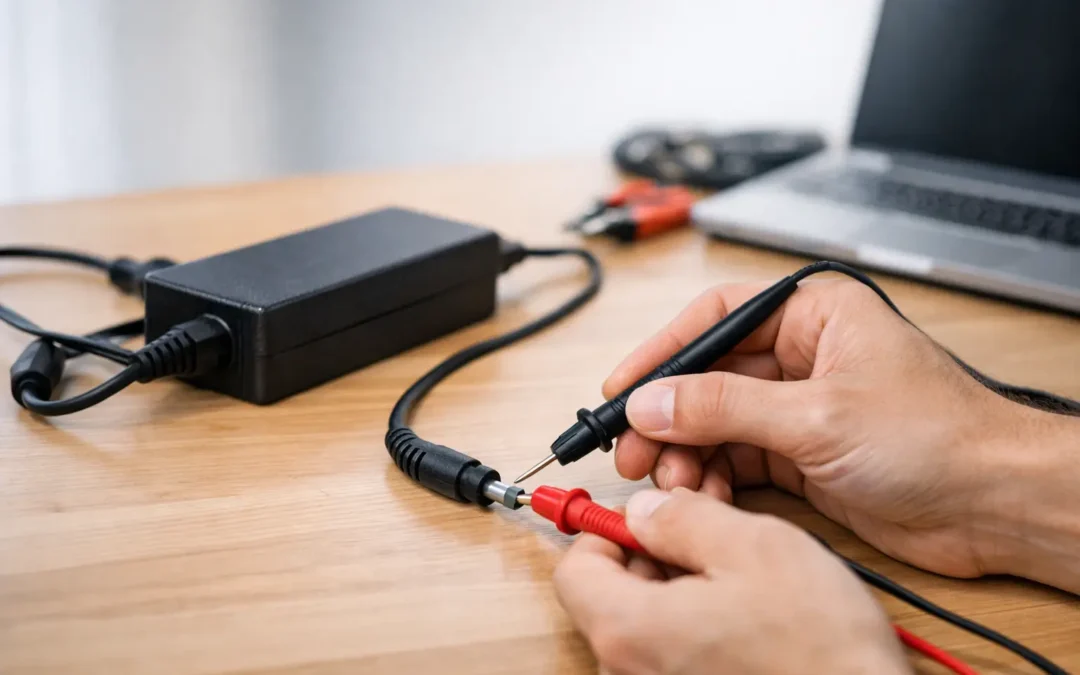
A digital multimeter can help confirm whether many barrel-style laptop adapters are producing the expected voltage. This test is useful when the adapter has no visible damage and you want a clearer answer before replacing it.
First, read the output voltage on the adapter label. Set the multimeter to DC voltage, using a range higher than the printed output. For a 19V adapter, for example, choose a DC range that can measure at least 20V.
Plug the adapter into a working wall outlet, but do not connect it to the laptop. Place the black multimeter probe against the outer metal barrel of the adapter plug. Carefully touch the red probe to the center pin or inner contact. Keep the probes from touching each other while they are in contact with the plug, as this can create a short circuit.
The reading should be close to the adapter’s labeled voltage. A 19V adapter may read slightly above or below 19V without concern. A reading of zero, a reading that jumps around significantly, or a voltage far below the label rating suggests a faulty adapter, cable, or internal connection.
This test has limits. An adapter can show the correct voltage with no load connected but fail when the computer demands power. If the voltage appears normal but charging remains unreliable, the cable may have an intermittent break, the adapter may be unable to deliver sufficient current, or the computer may have an internal charging fault.
USB-C adapters are more difficult to test accurately with a basic multimeter because they negotiate different voltages with connected devices. A USB-C power meter is more appropriate for checking voltage, current, and wattage under load. If you do not have the right tools, testing with a compatible known-good charger is safer and usually more useful.
Perform a Gentle Cable and Connector Check
Intermittent charging often points to cable damage near the power brick or connector. With the adapter connected to the computer, gently move the cable near these stress points. Do not bend it sharply or pull it. Watch the battery icon or charging indicator while you do this.
If charging starts and stops when the cable moves, the internal wires may be broken. Replace the adapter rather than wrapping the damaged area with tape. Tape does not repair damaged conductors or restore insulation safely.
Also examine the connector for black marks, melted plastic, wobbling, or a bent center pin. On MagSafe-style Apple chargers, check for debris on the connector and look for unusual discoloration. On USB-C chargers, inspect both the cable ends and port carefully. A loose USB-C connection can result from a worn cable, compacted debris, or damage inside the port.
Know When to Stop Testing
Stop using the adapter and seek professional help if you notice sparking, smoke, a burning odor, severe heat, exposed wires, melted plastic, or electrical shocks. These are not minor charging inconveniences. They can indicate a serious electrical hazard.
You should also arrange diagnostics when a verified compatible charger does not power or charge the computer. Replacing adapters repeatedly will not solve a failed battery, damaged DC-in board, USB-C port issue, or motherboard-level charging problem. For business users and students, this distinction matters because a charging fault can become a sudden no-power situation with little warning.
Stealth PC Technology can assess both Mac and Windows charging issues, helping determine whether the adapter is the problem or whether the computer needs repair. A proper diagnosis can prevent unnecessary accessory purchases and help protect the device from further damage.
Choose a Replacement Carefully
When an adapter fails, buy a replacement that matches the original specifications and is designed for your device. Manufacturer-approved adapters are generally the safest choice. Quality third-party options can also be suitable, but confirm the voltage, wattage, connector type, and USB-C power-delivery support before buying.
Avoid unusually cheap, unbranded chargers that provide vague specifications or feel excessively light and poorly assembled. The initial savings can disappear quickly if an unreliable adapter damages a charging port or fails during an important workday.
A charger should make using your computer easier, not leave you wondering whether it will power on tomorrow. If the outlet checks out, the cable is damaged, or the voltage test is outside the acceptable range, retire the adapter and replace it with a properly matched one. If the results are unclear, a professional diagnostic is the safer next step.