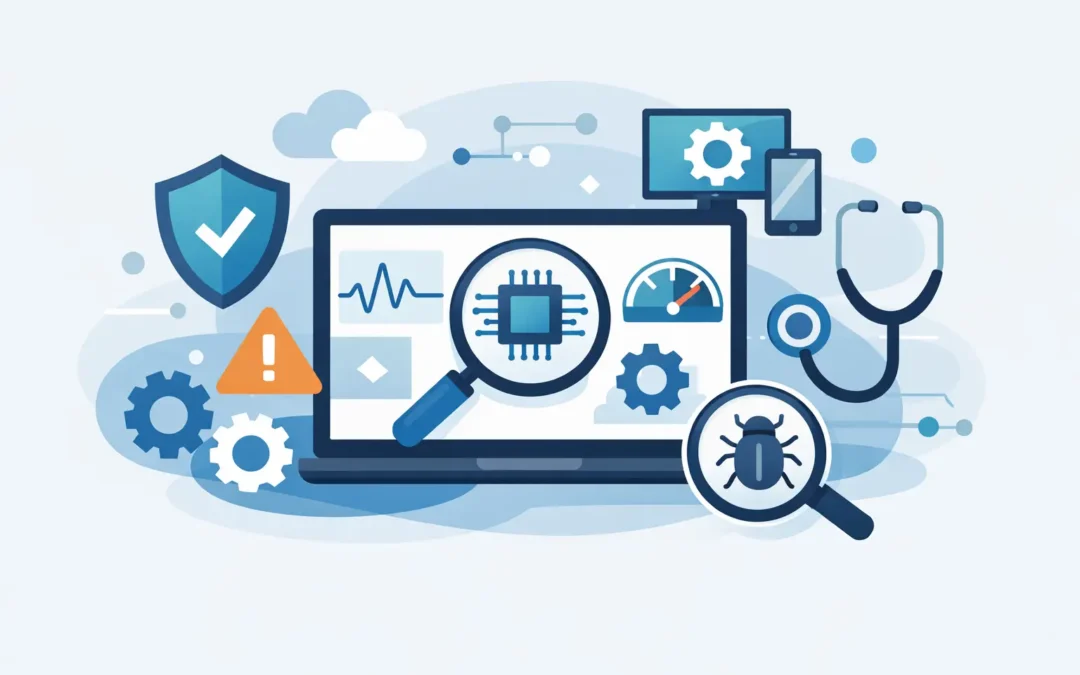
A slow startup, random shutdown, fan noise that was not there last week – these are the moments when best computer diagnostic software stops being a nice-to-have and starts feeling urgent. The right tool can tell you whether you are dealing with a failing drive, bad memory, overheating, driver trouble, or a battery that is simply at the end of its life. The wrong tool can waste time, miss the real issue, or make a stressful problem harder to understand.
For most people, the real question is not which app has the longest feature list. It is which diagnostic software gives clear answers fast enough to help you decide what to do next. That matters even more if your laptop is used for work, school, client meetings, or day-to-day business.
What the best computer diagnostic software should actually do
Good diagnostic software does not just throw technical data at you. It should help you narrow down the cause of a problem. On a healthy system, it gives you a baseline. On a troubled one, it helps separate software glitches from hardware failure.
The most useful tools usually check system temperatures, storage health, memory stability, CPU and GPU load, battery condition, and basic device information. Some also read S.M.A.R.T. data from drives, show crash logs, or run stress tests to reproduce an issue. That last part is helpful, but it is also where caution matters. A stress test can expose instability, but on a system that is already overheating or shutting down, it can push the machine harder than it should be pushed.
That is why the best option depends on the problem in front of you. If your concern is a dying SSD, a storage health tool matters more than a benchmarking app. If your MacBook battery is draining quickly, battery cycle count and power health are more useful than CPU charts.
Best computer diagnostic software for everyday troubleshooting
CrystalDiskInfo
For Windows users worried about drive health, CrystalDiskInfo remains one of the most practical starting points. It reads S.M.A.R.T. information from hard drives and SSDs and presents it in a way that is easier to understand than many advanced utilities.
Its strength is focus. If a machine is freezing, taking a long time to open files, or showing read and write errors, storage is often part of the story. CrystalDiskInfo can flag warning signs early. The trade-off is that it is not an all-in-one diagnostic suite. It will not test memory, battery health, or full system stability.
MemTest86
When a computer crashes randomly, blue screens without a clear pattern, or corrupts files, bad RAM is a serious possibility. MemTest86 is one of the most trusted tools for memory testing because it runs outside the operating system and checks RAM more thoroughly than quick in-system scans.
It is not the fastest option, and that is the point. A proper memory test takes time. If you want certainty, especially before replacing parts, patience is worth it.
HWiNFO
HWiNFO is one of the strongest Windows tools for detailed hardware monitoring. It gives a broad view of temperatures, voltages, clock speeds, fan behavior, sensor readings, and component information.
For advanced users and small business owners trying to understand whether a PC is overheating under load, this can be extremely helpful. The downside is that it can feel dense at first glance. If you are looking for a simple yes-or-no answer, it may show more data than you need.
HWMonitor
HWMonitor covers some of the same ground as HWiNFO but with a simpler presentation. It is often enough for checking whether a CPU or GPU is running too hot, whether fans are responding, and whether voltages look reasonable.
This makes it a good middle-ground tool. It is not as deep, but it is easier for non-technical users to scan quickly.
Apple Diagnostics
For Mac users, Apple Diagnostics is often the right first step. It is built into many Macs and can help detect issues related to logic board components, memory, sensors, and some wireless hardware.
Its biggest advantage is that it is native to the platform. Its biggest limitation is that it does not catch everything. A Mac can pass Apple Diagnostics and still have battery degradation, storage issues, liquid damage, thermal trouble, or intermittent board faults that only show up under certain conditions.
DriveDx
If storage health is the concern on a Mac, DriveDx is widely respected. It provides deeper visibility into drive condition than what many users get from built-in tools alone. This is especially useful if a Mac is slowing down, beachballing often, or having trouble during file transfers.
Like CrystalDiskInfo, it is specialized rather than broad. That is a strength when you suspect the drive, but not a replacement for wider testing.
Built-in tools vs third-party software
Built-in diagnostics are a good place to start because they are already matched to the system and usually safe to run. Windows users can check Event Viewer, Reliability Monitor, Task Manager, and basic memory and storage utilities. Mac users have Apple Diagnostics, Activity Monitor, Disk Utility, and battery health information.
Third-party tools become more valuable when the built-in options are too limited or too vague. A built-in tool might tell you there is a hardware issue. A specialized utility is more likely to point toward the drive, memory, thermals, or power system.
That said, software only sees what it can measure. It may not identify a damaged charging port, liquid exposure, a failing hinge that affects display cables, or a battery swelling inside the case. Those problems need physical inspection.
How to choose the right diagnostic tool for your problem
If your computer is running hot, start with a temperature and sensor monitor. If it crashes under load, use a monitoring tool first and then a controlled stress test only if the system is stable enough. If files are disappearing, boot times are getting worse, or the system freezes when opening folders, check storage health early.
If the machine restarts without warning, memory and power should both be considered. If the battery drains too quickly or the system shuts off when unplugged, battery diagnostics matter more than general benchmarking.
This is where many users lose time. They download a popular tool without matching it to the symptom. Good diagnostics are not about collecting the most information. They are about collecting the right information.
When diagnostic software is not enough
The best computer diagnostic software can point you in the right direction, but it will not replace hands-on testing when the issue is intermittent, physical, or board-level. A laptop can appear healthy in software and still have a failing DC jack, damaged USB-C port, loose internal connection, or thermal paste problem. The same goes for Macs with charging faults or Windows laptops with keyboard, hinge, or screen-related issues.
There is also the question of interpretation. A temperature reading of 95 degrees may be normal during a brief workload on one model and a warning sign on another. A drive health message can indicate immediate failure risk, or it can point to an aging part that still needs proper confirmation before replacement.
That is why serious troubleshooting works best in stages. Start with safe software checks. Back up important data early. If the results suggest hardware trouble, move to professional diagnostics before the machine gets worse or the data becomes harder to recover.
A practical standard for choosing the best computer diagnostic software
For most users, the best computer diagnostic software is not one single product. It is a short list of reliable tools chosen by symptom. CrystalDiskInfo or DriveDx for storage concerns, MemTest86 for RAM problems, HWiNFO or HWMonitor for temperatures and sensors, and Apple Diagnostics for a first-pass Mac hardware check is a sensible mix.
If you are supporting a home office, student laptop, or small business workstation, clarity matters more than complexity. Use software that helps you answer a simple question: is this a settings issue, a failing part, or a machine that needs a proper bench diagnosis? That approach saves time, reduces guesswork, and makes the next step much easier.
When a computer is central to your work or school day, the smartest move is often the one that protects your time as much as your hardware. Start with the right diagnostic tool, but do not wait too long to get expert help if the signs point deeper.